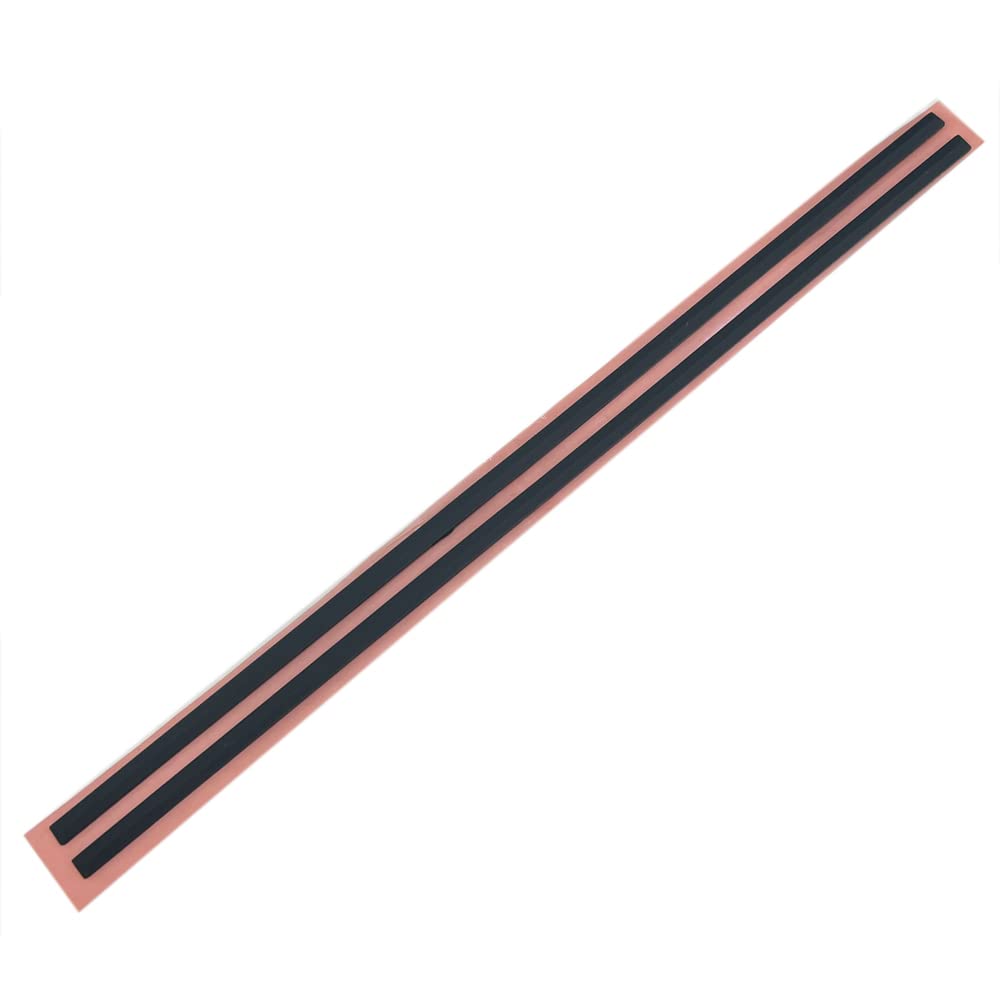
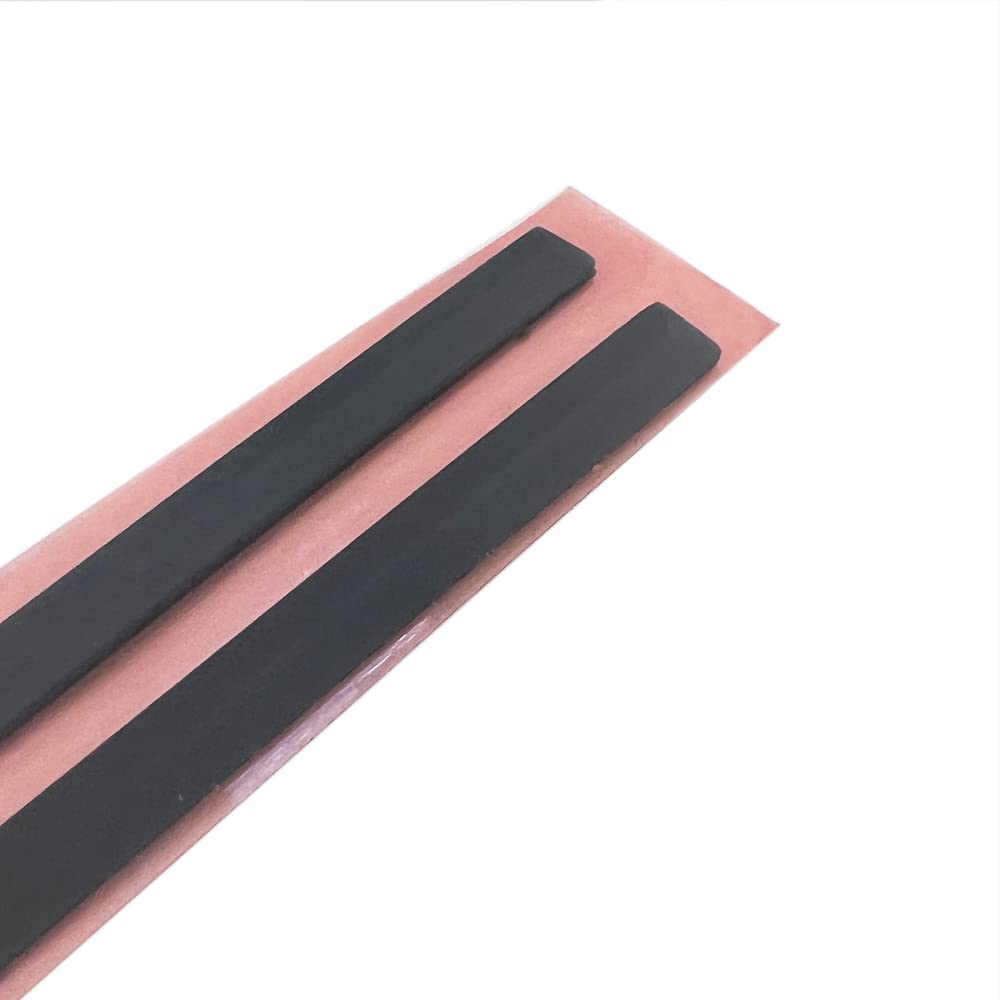
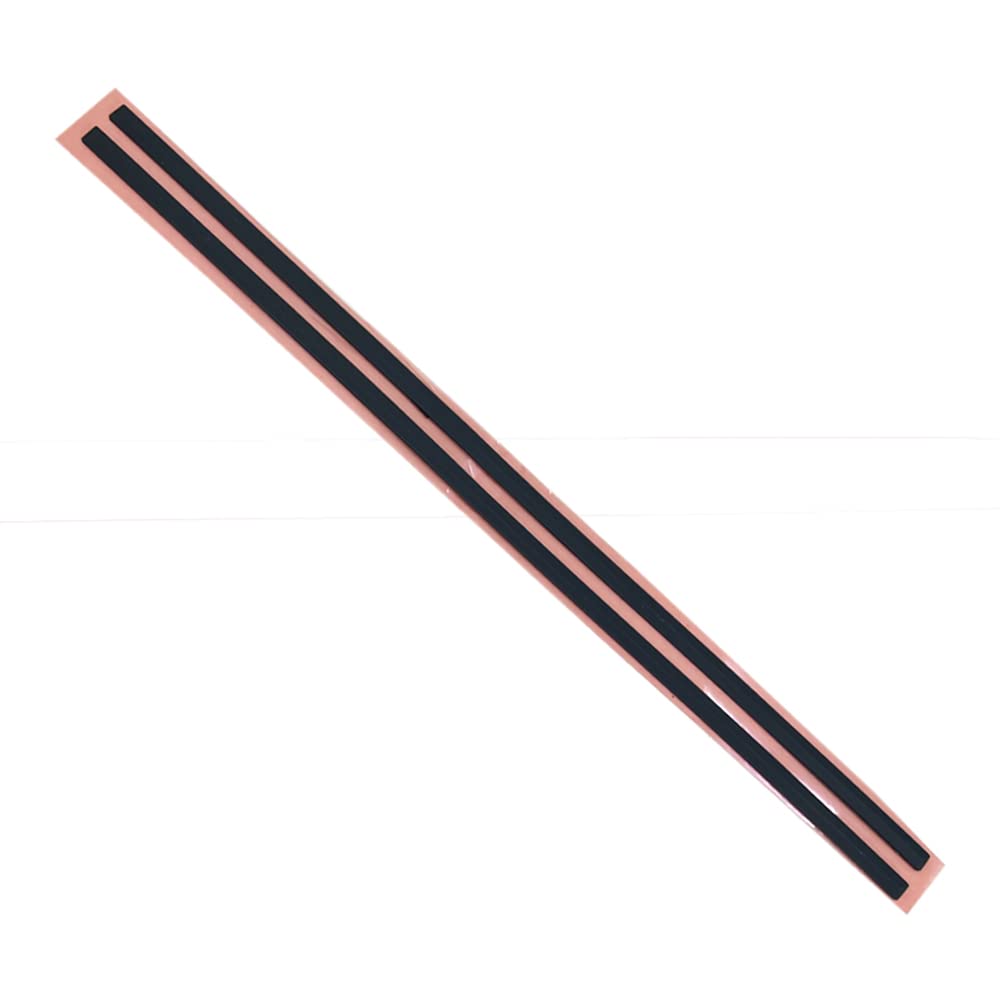
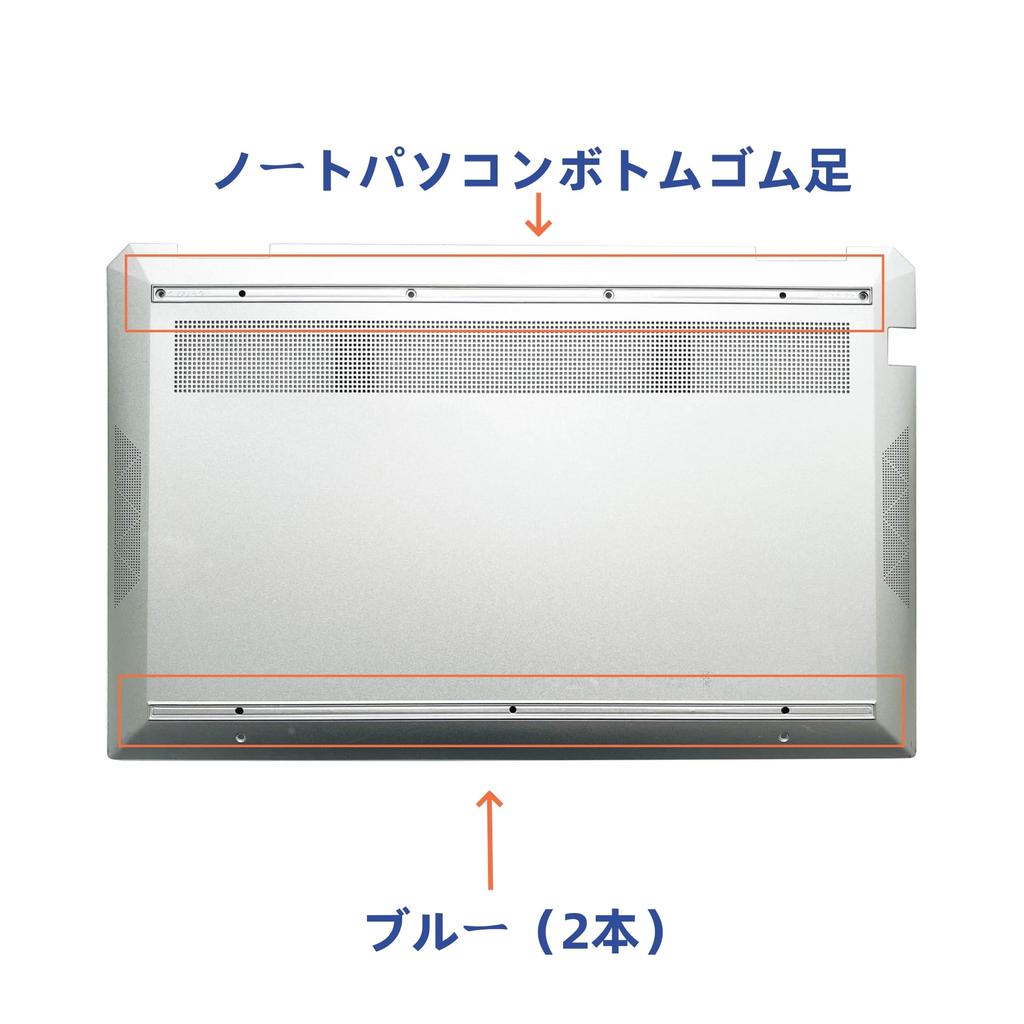
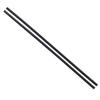
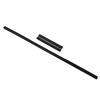
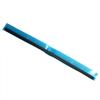
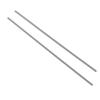
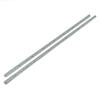
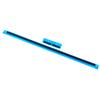
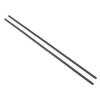
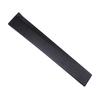
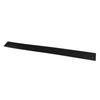
Package Included: Laptop Bottom Rubber Feet (Blue / 2 pieces)
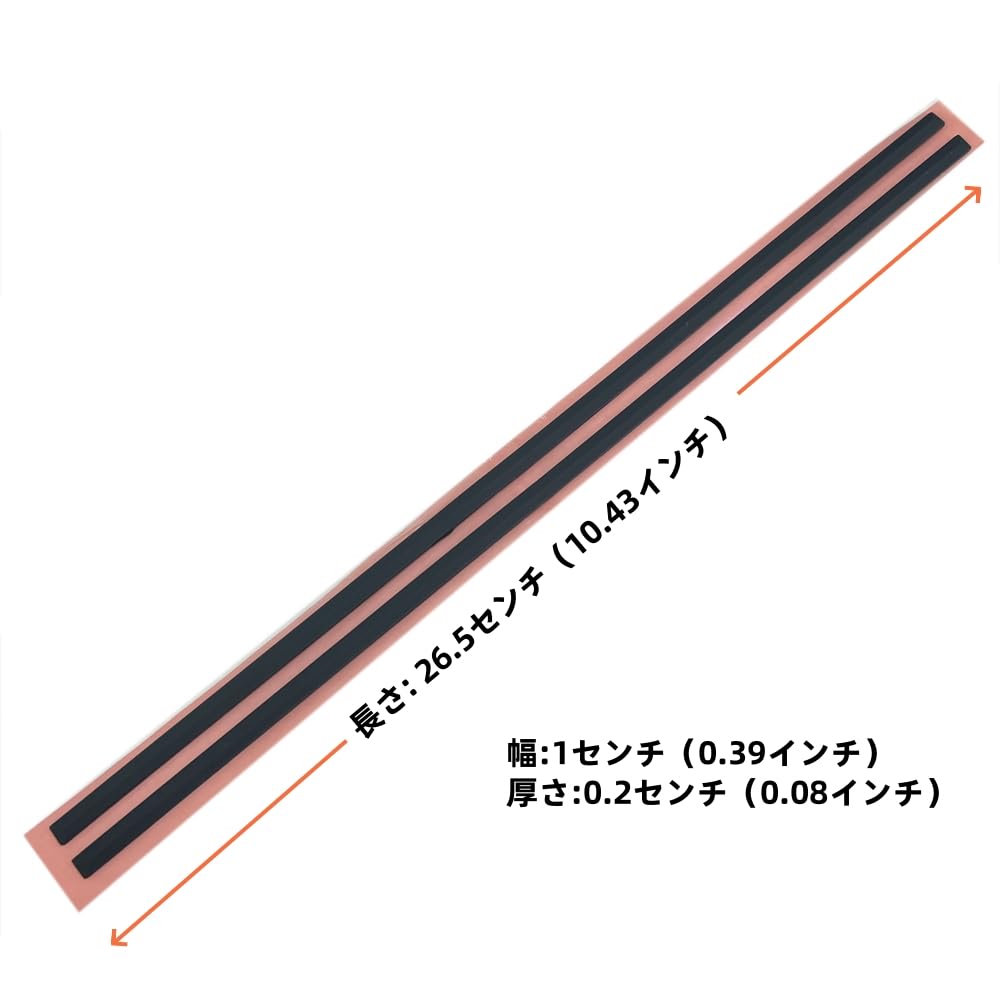
Size:
Length: 26.5 cm (10.43 in)
Width: 1 cm (0.39 in)
Thickness: 0.2 cm (0.08 in)
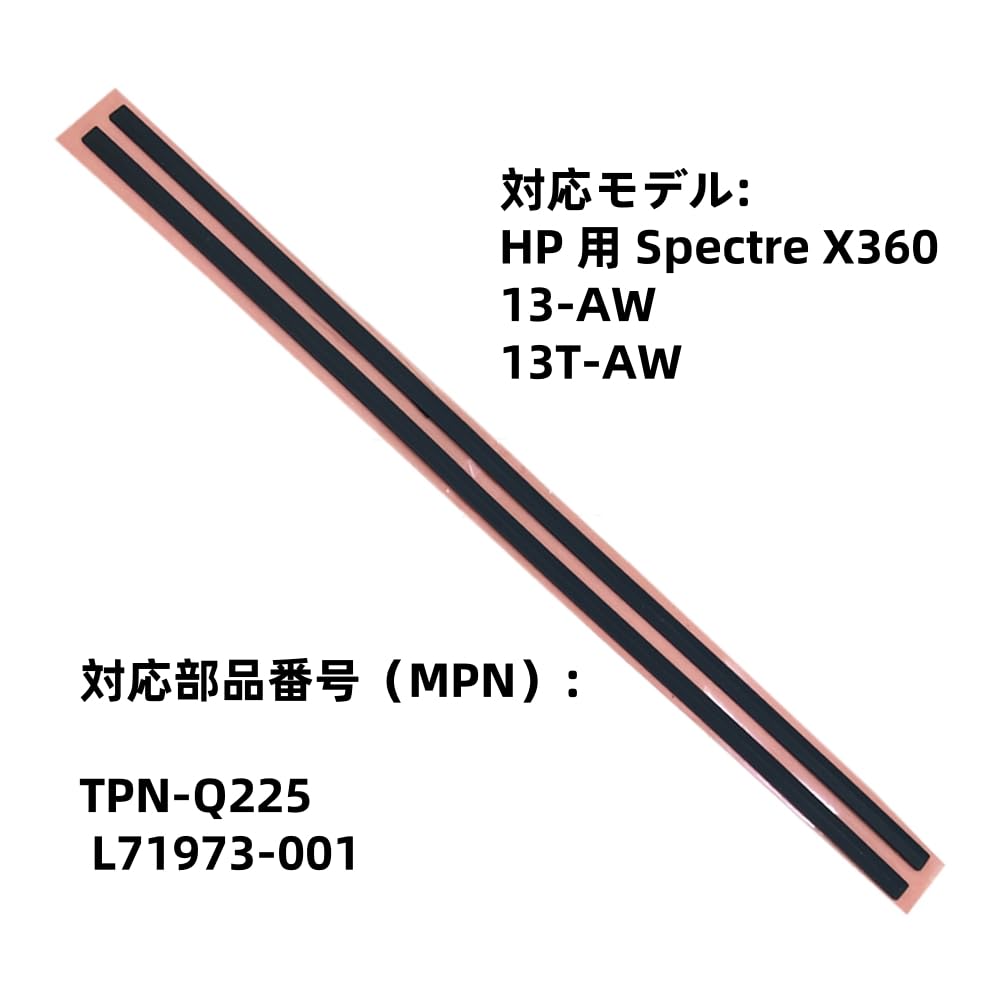
Compatible Models: HP Spectre X360
13-AW
TPN-Q225
13T-AW
Compatible Part Number (MPN): L71973-001
Laptop Foot Pad Installation Guide
1. Preparation
1. Select the Appropriate Foot Pad
*Check your laptop model and purchase the appropriate foot pad.
2. Tools
*Fine-tipped tweezers or a thin-bladed knife (for removing the old foot pad).
*Alcohol swabs or a cleaning cloth (for cleaning the adhesive surface).
*New foot pad.
2. Removing the Old Foot Pad
1. Carefully peel off the old foot pad.
*Slowly peel off the old foot pad using tweezers or a knife, taking care not to damage the laptop.
2. Note: If there is any adhesive tape or fixing parts remaining under the footpads, remove them all. This will affect the installation of the new footpads.
3. Cleaning the Adhesive Surface
*Wipe the bottom of the laptop with an alcohol swab to remove any remaining adhesive or dust and ensure a secure fit for the new footpads.
3. Installing the New Footpads
1. Alignment
*Align the new footpads in their original positions (using the remaining old footpads and the recesses on the laptop as a reference).
2. Secure
*Peel off the protective film from the back of the new footpads and gently press them down for 10-15 seconds to ensure a firm adhesion.
*Key Check: Make sure each footpad is firmly attached and that no edges are loose or raised.
4. Checking After Installation
1. Place the laptop on a flat surface and check that it is stable (adjust the position of the footpads if they are wobbly).
2. Make sure the footpads are at an even height and the laptop is not tilted.
[Notes]
1. Model Matching
Make sure to purchase footpads that are perfectly compatible with your laptop model. Incompatible footpads may result in poor installation or adhesion.
2. Removal Tips
Forcibly removing the footpads with a hard tool such as a screwdriver may damage the laptop or the internal screw holes.
3. Installation Details
If you encounter resistance, check for any remaining old adhesive tape or foreign objects.
After installing the new footpads, avoid moving your laptop frequently for 24 hours and allow the adhesive to fully harden.
4. Environmental Conditions
Make sure your hands and the laptop are dry before installation. Adhesion will be weakened in a humid environment.
Following the above steps will ensure a secure installation of the new footpads, extending the life of your laptop and improving user comfort.
If you have any questions, please feel free to contact our customer service. Thank you for your cooperation.
Blue - Laptop Bottom Rubber Feet for HP Spectre X360 13-AW TPN-Q225 13T-AW / Compatible Part Number (MPN): L71973-001 (2 pieces) Non-Slip Pads
Pre-Purchase Instructions: Before purchasing, please confirm your required model and ensure the product you are purchasing is compatible. (See below for detailed information.) After confirming your model, please also verify that the part you have matches the product image. The product you receive will be the same as the image, so please check carefully.
*"Foot Pad Installation Instructions and Precautions": 1. Completely remove the old foot pads to expose the mounting holes. 2. First, install the pads from both ends, firmly fitting them into the mounting holes on the PC. Next, align the center hole and press down to seal. Installation is complete.
Pre-Sales Support: If you have any questions before purchasing, please contact customer support at any time. If you have any questions or concerns after receiving the product, please contact customer support.
Thank you for your continued patronage. Customer satisfaction is our number one priority, and we will continue to provide even better service. We appreciate your continued support.