Voltage Compatibility】
When using electrical appliances, please note that they are designed for Japanese voltage specifications (90-110V), so if you use them with a different voltage, it may cause a malfunction.
【Plug Type】
Our products use Japanese plug types (A or B type).
Please use a conversion adapter if necessary.
【Important Note on Transformers and Adapters】
A transformer adjusts voltage to match your device’s requirements.
A conversion adapter only changes the plug shape and does not adjust voltage.
Using only a conversion adapter without a transformer may result in damage to the product.
【Liability】
We are not responsible for malfunctions or damages caused by improper use, such as operating the product without a transformer.
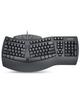
Split Ergonomic Design Keyboard: The keys are split into two in the middle, fanning out to the left and right, allowing you to type with your hands and fingers in a natural position. The integrated palm rest also provides comfortable support for your arms and wrists while typing, preventing fatigue and wrist pain.
Equipped with dual wireless modes: Supports both 2.4GHz and Bluetooth 4.0. Easily switch between modes using the switch on the bottom of the unit; Uses a tiny nano receiver that doesn't get in the way. Can be stored on the bottom of the unit. <Note> This product is an English keyboard. If you want to use it as a Japanese keyboard, you will need to change the layout in the settings screen of your computer.
Compatible with both Windows and MacOS: The keyboard has an OS switching switch on the bottom. You can change all four keys to match your OS. Convenient media keys allow you to control playback, pause, volume up/down, mission control, and more with one touch.
Solid typing feel: The keyboard features longer key tops and is designed to provide a smooth typing feel, allowing you to enjoy comfortable typing with fewer typos.
Compatible OS: Windows 10, 11 and Mac OS X; Product contents: PERIBOARD-612W, 4 replacement keys, keycap removal tool, instruction manual. [Official warranty] Manufacturer: Perixx Computer GmbH, Designed in Germany
How to connect wirelessly: 1. Insert two AA batteries 2. Use the buttons on the bottom of the keyboard to select the OS mode that matches your device (the keyboard is set to Mac OS mode at startup) 3. Select the wireless mode you want to use (there are wireless switch and connection buttons on the bottom of the keyboard) 4. When using 2.4GHz mode, simply insert the receiver into the USB port of your computer and you're ready to go. When using Bluetooth mode, switch the switch on the bottom to Bluetooth mode, press the connect button, and search for PERIBORD-612 on the Bluetooth screen of your device. Battery level/Num/Caps lock indicator: When the battery level is below 5%, the indicator will flash for 10 seconds. The Num lock and Caps lock indicators will automatically turn off after 30 seconds to prevent power consumption. When using again, the settings will remain the same as when you last used them. Note: - When using Bluetooth mode, make sure your device is compatible with Bluetooth 4.
0 - For Windows 7 and 8, we recommend you use the wireless 2.4 GHz mode.
![Perixx Ergonomic Keyboard Wireless Ergonomic Wireless Windows Compatible English Layout PERIBOARD-612W Bluetooth/2.4GHz 10/MacOSX [Official Warranty]](https://img.joomcdn.net/b8169deb4c663cbf670babba754877beb556c5b4_1024_1024.jpeg)
![Perixx Ergonomic Keyboard Wireless Ergonomic Wireless Windows Compatible English Layout PERIBOARD-612W Bluetooth/2.4GHz 10/MacOSX [Official Warranty]](https://img.joomcdn.net/4ee89a31839818bb4c53389edd9d41c16452deb6_1024_1024.jpeg)
![Perixx Ergonomic Keyboard Wireless Ergonomic Wireless Windows Compatible English Layout PERIBOARD-612W Bluetooth/2.4GHz 10/MacOSX [Official Warranty]](https://img.joomcdn.net/c993b51723449a910c0a2d89c6df00f8838dfec1_1024_1024.jpeg)
![Perixx Ergonomic Keyboard Wireless Ergonomic Wireless Windows Compatible English Layout PERIBOARD-612W Bluetooth/2.4GHz 10/MacOSX [Official Warranty]](https://img.joomcdn.net/352fcd5a90a31d572a5c5084ceb26ad3b1d01058_1024_1024.jpeg)
![Perixx Ergonomic Keyboard Wireless Ergonomic Wireless Windows Compatible English Layout PERIBOARD-612W Bluetooth/2.4GHz 10/MacOSX [Official Warranty]](https://img.joomcdn.net/947e0002050830abbd7546494afd039cefecffac_1024_1024.jpeg)
![Perixx Ergonomic Keyboard Wireless Ergonomic Wireless Windows Compatible English Layout PERIBOARD-612W Bluetooth/2.4GHz 10/MacOSX [Official Warranty]](https://img.joomcdn.net/ea905eaf279cd4136f0b3d45d4c387d9b7b3ae6f_1024_1024.jpeg)
![Perixx Ergonomic Keyboard Wireless Ergonomic Wireless Windows Compatible English Layout PERIBOARD-612W Bluetooth/2.4GHz 10/MacOSX [Official Warranty]](https://img.joomcdn.net/60db6c1f18408b521459b2128d1784fd43e1856f_1024_1024.jpeg)