---------------------------------------------------
【Condition】
Please check the product description and photos for the condition.
Some items may have not been tested or may show signs of use.
【Included Items】
Accessories are limited to those shown or mentioned in the product description.
Items such as manuals, boxes, or cables are not included unless specifically stated.
【Product Specifications and Firmware】
Some Japanese domestic models may have limited functionality overseas.
Please check compatibility before purchase.
【Voltage Compatibility】
Our products are selected to support international voltage ranges (e.g. 100–240V).
However, please make sure your local voltage is compatible before use, as incorrect voltage may still cause malfunction.
【Plug Type】
Our products use Japanese plug types (A or B type).
Please use a conversion adapter if necessary.
【Important Note on Transformers and Adapters】
A transformer adjusts voltage to match your device’s requirements.
A conversion adapter only changes the plug shape and does not adjust voltage.
Using only a conversion adapter without a transformer may result in damage to the product.
【Liability】
We are not responsible for malfunctions or damages caused by improper use, such as operating the product without appropriate voltage or equipment.
---------------------------------------------------
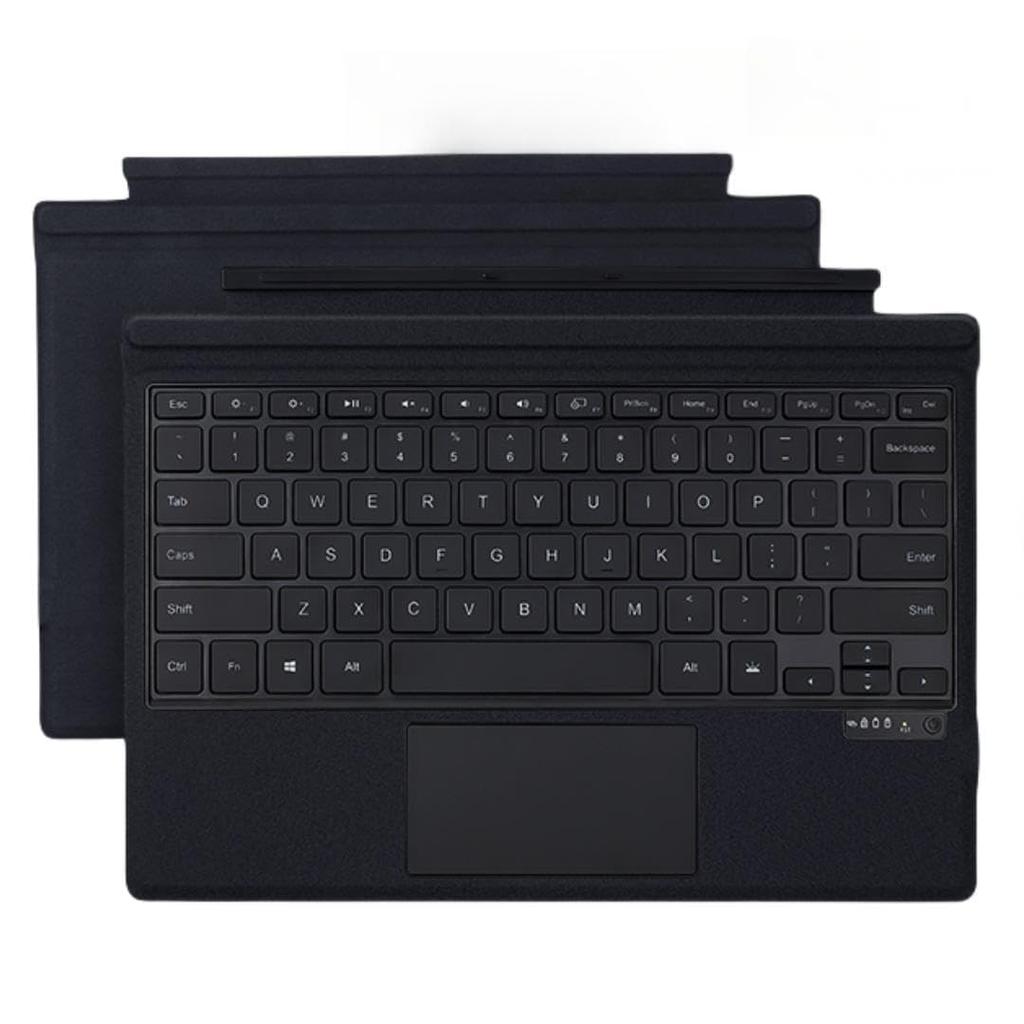
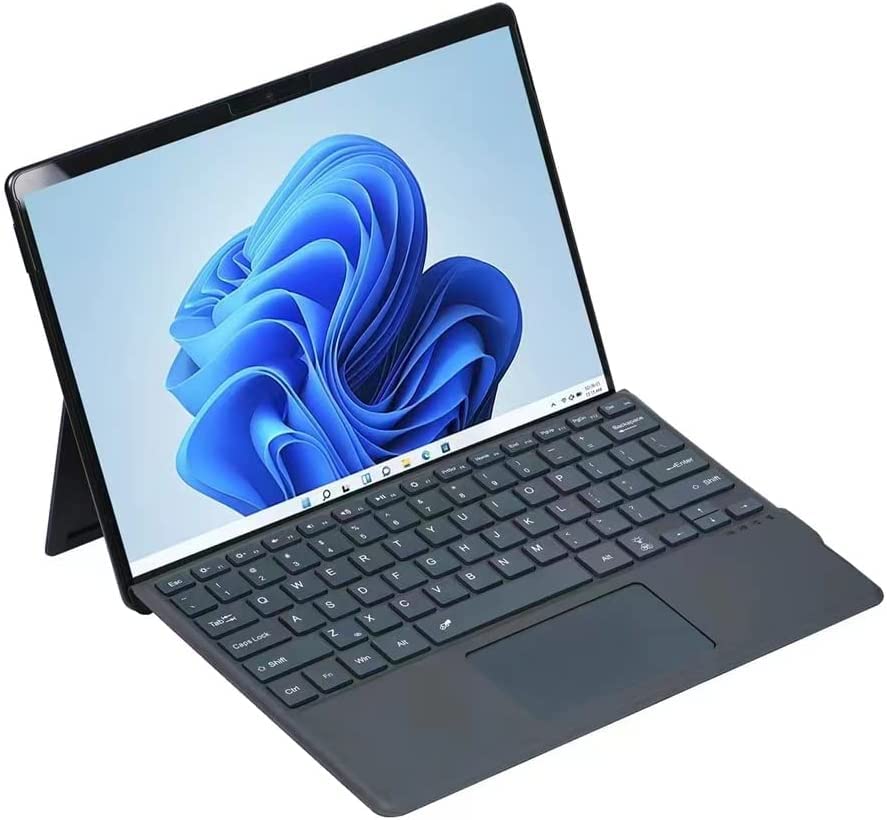
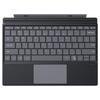
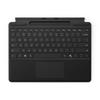
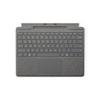
Compatible models: Surface Pro 11, Surface Pro 10, Surface Pro 9, Surface Pro 8, and Surface Pro X keyboard; Material: PU+ABS; Weight: 360g; Size: 289*225*7mm; Package contents: 1 x Case, 1 x Keyboard, 1 x Charging Cable
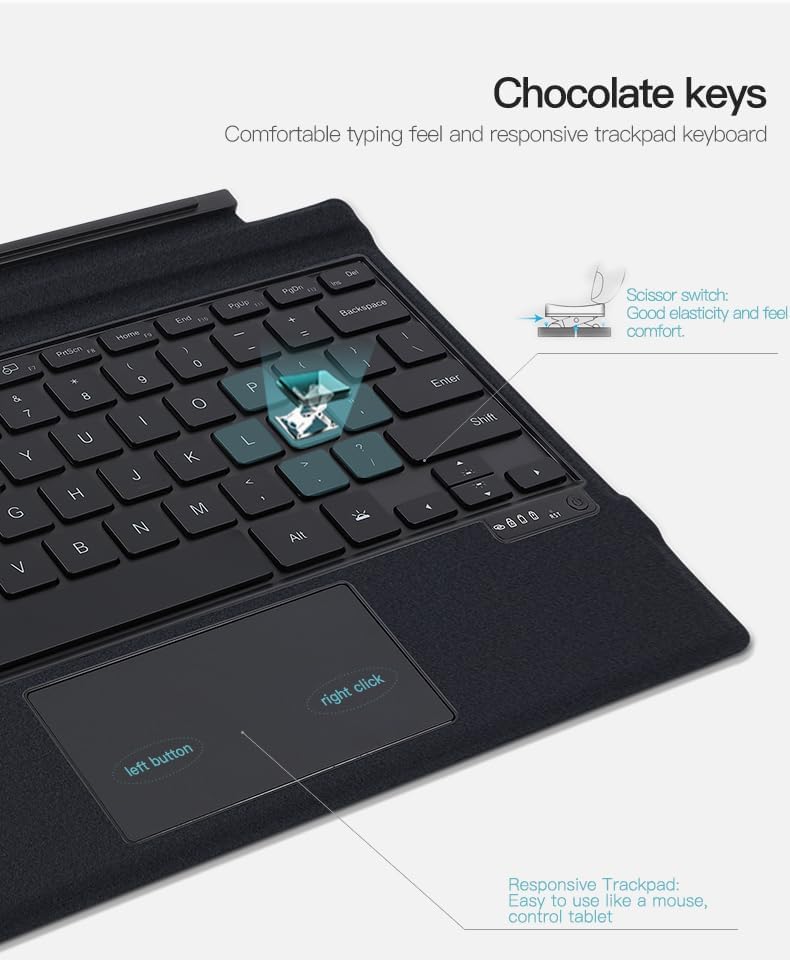
●[Equipped with a touchpad]----- Surface Pro can be operated as easily as a laptop, allowing you to easily control the cursor and scroll without having to touch the screen or use a mouse, making it very convenient for work, study, and business.
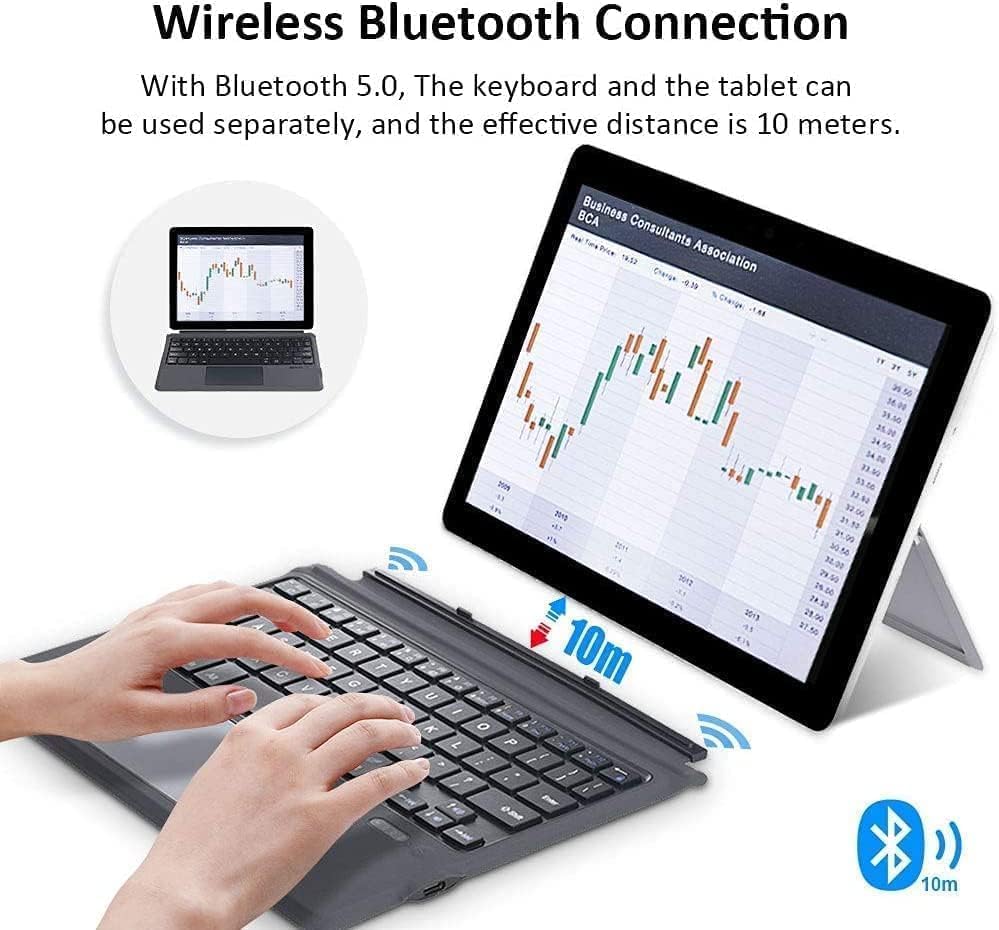
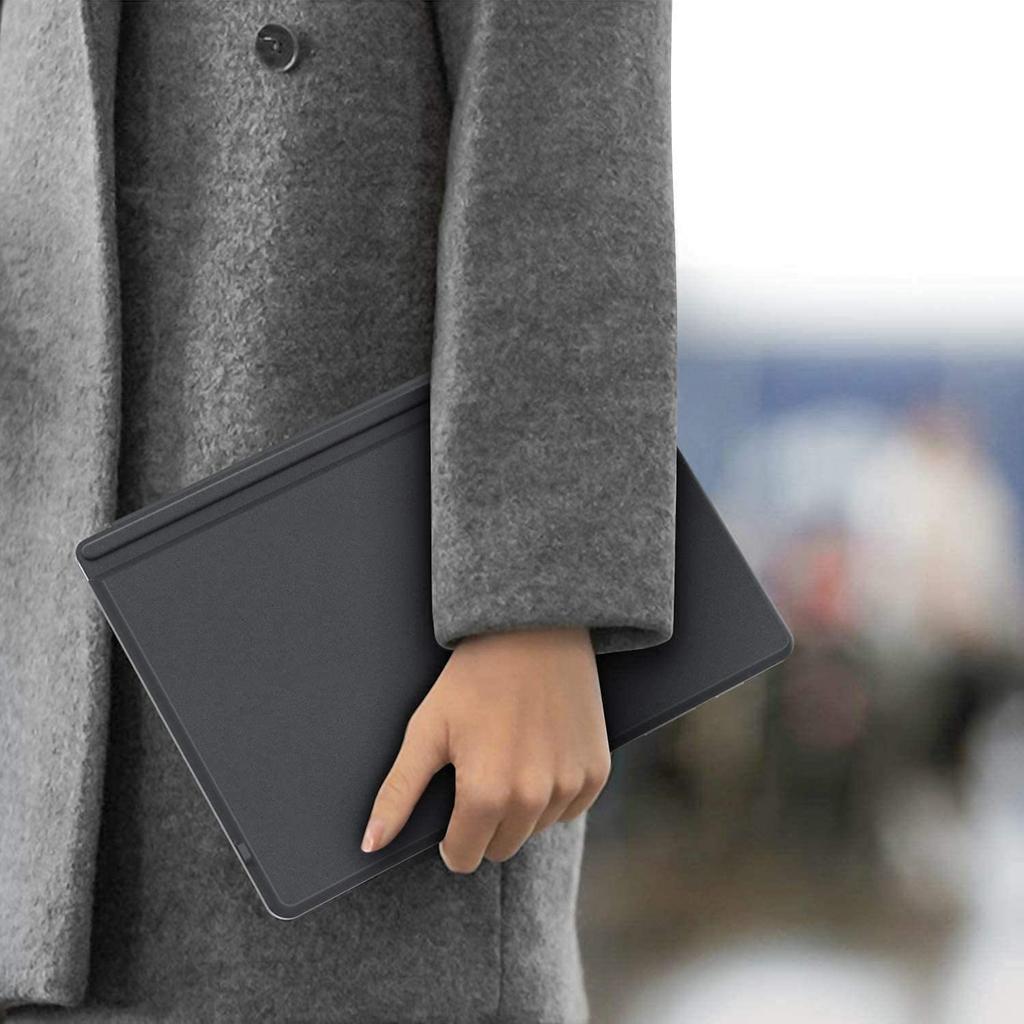
●[Lightweight and thin]-----This keyboard is lightweight, wireless, and easy to carry, and is shock-resistant, making it very convenient for use when you're out and about or at work.
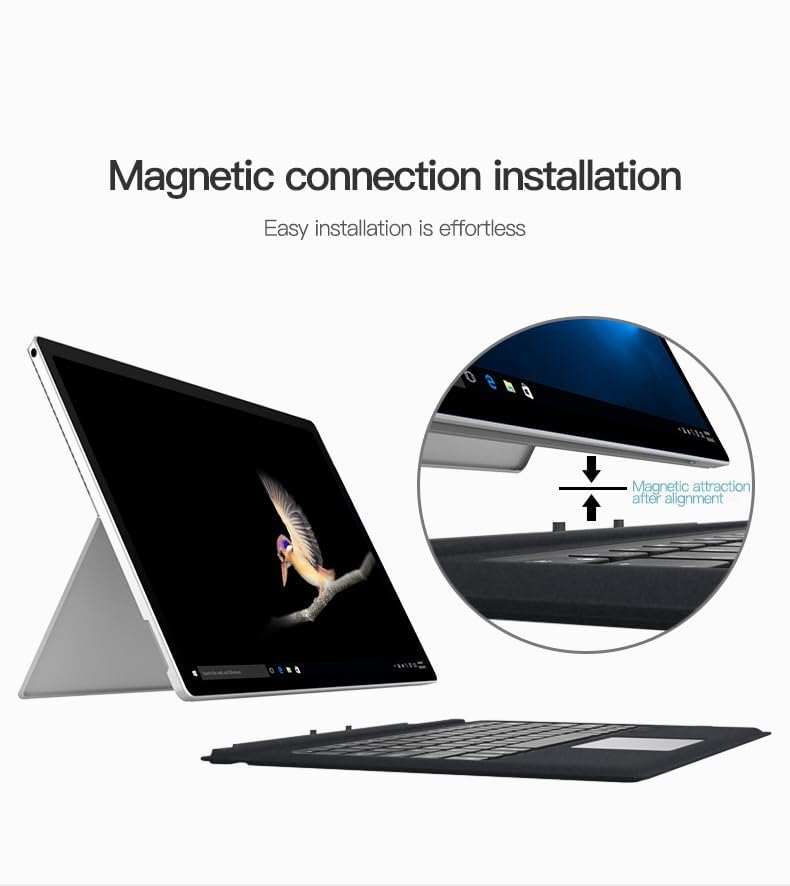
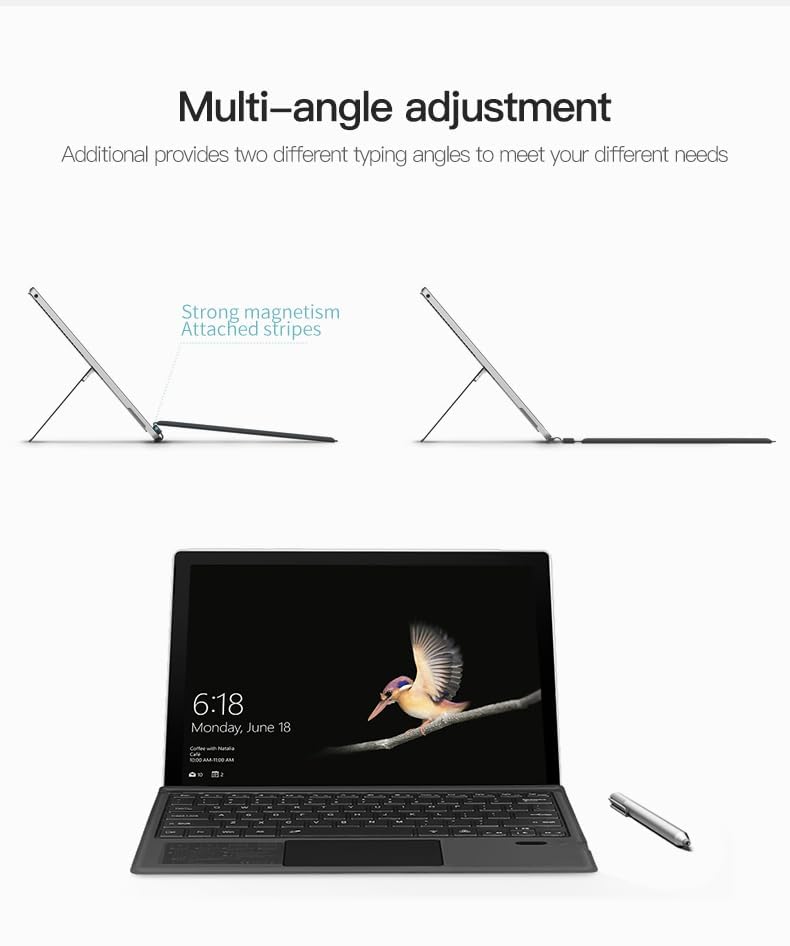
●【Magnetic Adsorption Keyboard】---- The case has a built-in powerful magnet, which firmly attaches the keyboard and makes it difficult to fall off. The magnetic attachment style makes it very easy and convenient to attach to your Surface Pro.
●[WARNING!!!]-----The keyboard only supports "US English 101/102" layouts. If you are using "Japanese 106/109" layouts, you must change the keyboard language setting on your PC to "English 101/102" layout. Failure to do so may result in input errors or incorrect recognition.
[The method for connecting to the device is as follows]
1. Press the round power button at the bottom right of the keyboard firmly to turn the power on.
2. Turn on Bluetooth in the Surface settings and pair it.
If the keyboard does not appear automatically:
Press and hold the Fn key at the bottom left of the keyboard and without releasing it, press the Roman alphabet Z.
Please touch the keyboard displayed on the screen.
3. If the authentication (PIN) code is displayed on the Surface screen,
Enter numbers on the keyboard and press Enter.
If the key you entered is different from the key displayed,
Please check if it is recognized as a US keyboard.
Please check or set this setting using the steps below.
Open Surface Settings and select Time & Language
Select "Japanese" as your preferred language
Select "Options"
"Hardware Keyboard Layout"
Select "Change layout"
Select the English keyboard and restart your Surface.
[Regular question FAQ]
Q: After turning it on, the Bluetooth won't pair.
A: It is likely that the battery is insufficient. If you are using it for the first time, we recommend charging it for 2-3 hours.
*Important: Please note that the connection mechanism and method for the original Surface keyboard are different.
*Regarding the backlight lighting specifications, if the keyboard is not operated for 5-10 seconds, the backlight will turn off.
Q: If I charge my Surface with the keyboard connected, will the keyboard also be charged?
A: Unlike the genuine product, this cannot be powered from the Surface itself, so it must be charged using the Type-C USB cable that comes with the set.
Q: I was able to pair the Bluetooth, but the cursor jumps to another location when I type.
A: It is likely that the heel of your hand is touching the keyboard touchpad when you are typing. Try turning off the keyboard touchpad function by pressing Fn+Spacebar.
Q: I've successfully paired the Bluetooth, but I want to turn off the backlight.
A: The "illuminated key" allows you to adjust the backlight brightness in three levels, and pressing it a fourth time will turn off the backlight. The illuminated key is to the right of the space bar. The "RGB key" allows you to adjust the backlight color. Choose your favorite color.


 No-delivery refund





![Quality Keyboard for Surface Pro Keyboard with Easy To USB Wireless Keyboard [90-day Guarantee] 3/4/5/6/7, Bluetooth, Touchpad, Install, Wireless,](https://img.joomcdn.net/ee35d2fbabaa42d10eef56d524603ac061215150_100_100.jpeg)